SULFUR Beginner's Guide: Gear Risk, Builds and PC Settings
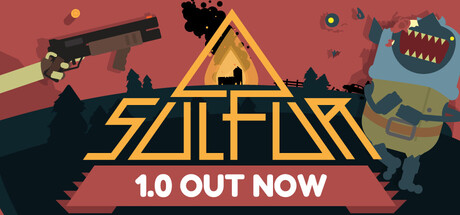
How gear loss works in SULFUR, how to put weapons together with attachments and enchantments, which PC settings to change first, and where trainer options fit.
How SULFUR Works
SULFUR is a first-person shooter with RPG systems layered on top. You go into hostile areas, fight enemies that rarely behave the same way twice, and pick up loot along the way. The rule that shapes everything is risk: gear you take into an area can be lost if you fail, and anything you leave behind won't be with you when a fight turns bad. Strong equipment makes a run easier and also gives you more to lose.
Both aggressive and cautious players can do well, so no single style is correct. Carelessness is what costs you. Before each run, settle three things: what you can afford to lose, what you hope to bring back, and the point at which you turn around.
- Decide before each run what you are willing to lose.
- Keep rare or hard-to-replace items at home until you know an area.
- Turning back early with your gear intact is not a wasted run.
- Listen to the creatures you meet; their warnings can point you somewhere useful.
Your First Runs
Start cheap. Early on, take ordinary weapons and gear you can replace without much trouble, and use those runs to learn how enemies move, how your guns handle and how each area fits together. Patch 1.0.2 fixed a level generation issue in Town, which suggests at least some layouts are generated rather than fixed. Learn habits that carry over instead of memorizing exact routes.
Food matters. Patch 1.0.2 made units drop food again, so enemies you kill are worth checking. Grab it when you see it, even if more valuable loot is sitting nearby, since keeping yourself going is what gets that loot home.
- Spend your first few runs learning the areas, not getting rich.
- Pick up food that enemies drop.
- Clear rooms slowly at first; enemies can wait in dark corners.
- Head back once your supplies run low.
Building Weapons and Loadouts
A build in SULFUR is the combination of your weapons, gear, tools and enchantments. Guns take a wide range of attachments and effects, so two copies of the same weapon can end up playing very differently. Build toward the way you like to fight rather than stacking whatever looks strongest.
The patch notes give a few clues about the systems involved: a crafting UI, 50BMG and 12Ga Chamber Chisels stocked at Ralphies store, and Cryo Snakes, an effect that procs on hits. Exact stats aren't published, so try new parts on runs where little is at stake. Read item descriptions closely, too. Since 1.0.5 the Ferryman shows RPM, which makes comparing fire rates much easier.
- Try new attachments and enchantments on cheap runs first.
- Check a weapon's RPM at the Ferryman before committing to it.
- Visit Ralphies store often; 1.0.2 increased how many random items it can stock at once.
- Carry a dependable backup gun in case your main build lets you down.
Exploring Areas and Protecting Loot
The route runs through caverns, Black Guild shanties, sewers, castle walls and further on. Patch notes also name a Forest, a Desert with crypts and a Town. Minibosses exist, the Novanian Guard among them, so some fights will ask more of your loadout than a normal room does.
You can insure weapons. Patch 1.0.5 fixed a bug that stopped gamepad players from insuring melee weapons. The exact terms aren't spelled out, but insurance is clearly meant to soften the blow of losing something valuable, so use it on gear you care about. Hidden secrets and treasure are worth hunting for; just weigh each detour against what you're carrying.
- Insure the weapons you would hate to lose.
- Search carefully; hidden secrets and chests reward patience.
- Go into unfamiliar areas with a lighter, cheaper loadout.
- Keep the game updated; 1.0.6 fixed soft locks in Desert crypts.
PC Settings and Performance
The minimum spec is modest: Windows 10 64-bit, a 2.4 GHz dual-core CPU, 8 GB of RAM, a GTX 970 or equivalent, DirectX 9 and 2 GB of storage. Recommended steps up to a quad-core CPU, 16 GB of RAM, a GTX 1080, DirectX 11 and 4 GB of storage. Near the minimum, expect to give up visual detail to hold a steady frame rate, which matters more in a fast shooter than sharper shadows do.
On weaker hardware, start with resolution scaling, shadows and post-processing where the game offers them, since those are usually the most expensive settings in shooters. With only 8 GB of RAM, keep textures moderate and close anything running in the background. Recommended-class machines have room to raise detail, but a stable frame rate should still come first.
- Drop shadows and post-processing first on weaker PCs.
- Turn off motion blur if it is available and makes aiming harder.
- Close browser tabs and overlays on 8 GB systems.
- Pick a steady frame rate over extra visual detail.
- Recheck your settings after updates, since patches can change performance.
Controls and Input
Controllers are fully supported, including DualShock pads and Steam Input. The first patches fixed a number of gamepad interface problems and issues when switching between a gamepad and mouse and keyboard. Controller players should stay up to date: 1.0.4 repositioned item descriptions in the crafting UI on gamepad, and 1.0.5 fixed melee insurance.
If menus act up after swapping devices, stick to one input method for the session. Patch 1.0.1 made the switch from melee to aiming down sights snappier, so hitting first and then shooting is a workable rhythm. Get comfortable with it on easy enemies before trusting it in a hard fight.
- Stay on one input device per session if menus misbehave.
- Set your sensitivity before taking expensive gear into a run.
- Practice switching from melee to ADS on weak enemies.
Using the Trainer in SULFUR
SULFUR is single-player, so the trainer only changes your own game. Use it offline and in your own saves. Because the threat of losing gear drives so much of the design, options like Infinite Health and Unlimited Items strip out most of the tension. They work best for testing builds, learning a difficult area or getting past a section that keeps stopping you. Some options may also affect Steam Achievements, so keep that in mind before switching them on.
Back up your saves before enabling anything. The game uses Steam Cloud, which can overwrite a clean save with a modified one. Make a manual copy, and consider pausing cloud sync while you experiment. Enable one option at a time, and if something misbehaves after a game update, leave the trainer off until it has been updated too.
- Infinite Ammo, No Reload and No Recoil make testing attachments quicker.
- Unlimited Money lets you try out Ralphies store stock and insurance without worrying about cost.
- Save and Load Position lets you scout an area without risking your gear.
- Game Speed, Super Speed and Super Jump suit exploration better than careful combat.
- Use XP Multiplier and One-Hit Kills sparingly if you want the game to stay challenging.
FAQ
Do I lose my gear if I die in SULFUR?
Gear you take into an area can be lost if you fail; that risk is central to the game. Insuring weapons gives you a way to protect the ones you value, and patch 1.0.5 fixed a bug that blocked gamepad players from insuring melee weapons.
Can I play SULFUR with a controller?
Yes. It has full controller support, including DualShock pads and Steam Input, and several early patches fixed gamepad interface issues.
Will SULFUR run on an older PC?
The minimum spec is a 2.4 GHz dual-core CPU, 8 GB of RAM and a GTX 970, so plenty of older systems can run it on lower settings. For higher detail, aim for the recommended quad-core CPU, 16 GB of RAM and a GTX 1080.
Is SULFUR multiplayer?
No. Steam lists it as single-player, with Steam Achievements and Steam Cloud saves.
Will using the trainer affect my cloud saves?
It can, because Steam Cloud syncs your save files. Make a manual backup before using any trainer option, and consider pausing cloud sync while you experiment.
Comments
No comments yet
Be the first to share your thoughts.