Planet Coaster 2: Beginner's Guide and Best Settings
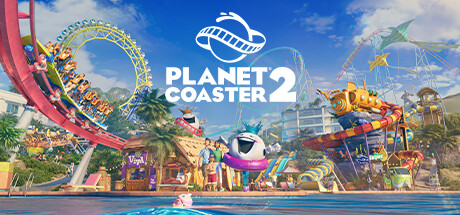
How to start your first Planet Coaster 2 park: building and pathing basics, guest care, water park needs, PC settings for your hardware and where trainer options fit in solo play.
Where to Start
Planet Coaster 2 pairs free-form building with a management layer. You lay out paths and plazas, shape terrain and build coasters and water rides piece by piece, then try to keep guests happy without sinking the budget. Difficulty is adjustable, you can save at any time and nothing depends on timed inputs, so there is no penalty for learning slowly.
Sandbox Mode is a good place to practise, since the game pitches it around creativity rather than balance sheets. Spend time there on path placement, terrain shaping and coaster construction before opening a park where money counts. Most early trouble in a managed park comes from a bad layout rather than bad spending, so time spent on the building tools pays off later.
- Spend your first session in Sandbox Mode learning paths and coaster pieces.
- Lower the difficulty on your first managed park if money keeps running out.
- Save before every large build so you can roll back a bad layout.
- Pick one of the nine themes per area to keep scenery choices manageable.
Building Paths, Plazas and Rides
Frontier reworked the building and pathing tools for the sequel, and you can now lay out large plazas instead of relying on narrow walkways. Plan the main routes before placing rides. A wide central plaza with branches to each attraction keeps crowds moving and puts food, drink and restrooms where guests already walk. Shape the terrain early, too; reworking hills around a finished coaster is slow.
Coasters and flumes go together piece by piece, and scalable scenery can now be attached directly to rides. Get each ride running and tested before you decorate it. The new event sequencer adds real-world theme park flair to your attractions and is worth a look once the park runs smoothly. There are nine themes, among them Pirate, Western, Viking and Mythology, and giving each one its own zone keeps the park easy to read.
- Build and test a ride before adding scenery to it.
- Leave space beside queues for later amenities.
- Shape terrain before placing tracks, not after.
- Use themed zones so scenery stays consistent.
Money, Power and Park Rating
Management comes down to thrilling guests without overspending. The game pushes you toward efficiently powered attractions, which suggests power use is a running cost worth watching as the park grows. Early on, a handful of well-placed rides backed by the right amenities is a safer bet than one expensive showpiece that drains funds before guests arrive in numbers.
Amenities feed directly into your park rating, so they matter as much as the headline rides. Heat maps show what guests want across the whole park, and selecting any guest reveals how they and their group are getting on. Check both often, fix the biggest problem first and expand only once income holds steady.
- Check heat maps after every major expansion.
- Click on unhappy guests to see what their group is missing.
- Add amenities before adding a second big coaster.
- Watch running costs, not only build costs.
Running a Water Park
Water parks are the sequel's big addition. Swimming pools and water flumes can be built alongside coasters and connected to the rest of the park, but they come with their own demands: shade, sunscreen, lifeguards and changing rooms. Leave those out and satisfaction drops even when the slides are busy, so plan the support buildings as part of the attraction.
Changing rooms work best between the main paths and the pool area, where guests pass them on the way in. Spread shade across open, sunny spaces rather than bunching it in a corner, and add lifeguards as pools get bigger. The heat maps help here as well, showing whether pool guests are short on comfort or safety.
- Put changing rooms on the route into the pool area.
- Spread shade evenly around large pools.
- Scale lifeguard coverage as pools grow.
- Make sunscreen easy to find near water areas.
Recent Updates Worth Knowing
Frontier has kept up a run of free updates and hotfixes. Free Update 11 brought Wait Time Signs as a scenery piece, new food concessions and on-ride photos for tracked rides and flumes. The signs are an easy way to show a ride's wait, and the extra concessions give you more to fill plazas with. Before that, hotfixes for Update 9 rebalanced arcade machine attractiveness, adjusted coaster intervals and fixed scenery grid problems.
Recent hotfixes have also targeted pack content. Hotfix 15 focused on the Silver Screen Pack and fixed walls and buildings failing to block sound, while Hotfix 16, aimed mainly at the Spooktacular Pack, reduced the exit speed of the Spectre's jump track. When you load an older save after a patch, run your coasters again, because changes to intervals or track behaviour can alter how existing rides perform.
- Re-test older coasters after a major patch.
- Try Wait Time Signs near your busiest queues.
- Review arcades if their draw seems different after updating.
PC Settings and Performance
Minimum spec is Windows 10 64-bit (22H2), an Intel i5-6600K or Ryzen 5 2600, 16 GB of RAM and a GTX 1060 6GB, RX 5600 XT or Arc A750, plus DirectX 12 and 25 GB of storage. An SSD is recommended at that tier and required at the recommended one. On minimum hardware, start at 1080p with modest settings. Global illumination and shadows are the likeliest settings to cost you frames, so lower those first.
Recommended spec moves up to an i7-10700K or Ryzen 7 5800, 16 GB of RAM and an RTX 2070 Super, RX 6700 XT or Arc A770, which should leave room for higher detail. Park builders tend to slow down as parks fill up, since every extra guest, ride and piece of scenery adds load. If a big park starts to stutter, thinning out dense scenery is worth trying before dropping resolution.
- Install on an SSD; the recommended spec requires one.
- Lower lighting and shadow quality first on weaker GPUs.
- Expect large parks to lean on the CPU.
- Enable HDR only if your monitor supports it properly.
Using the Trainer Options
The trainer is for single-player, offline play only. Keep it away from shared Sandbox parks and anything you build with friends, because those saves belong to other players too. Unlimited Money, Free Construction and Instant Research suit anyone who wants to build freely without the budget or the unlock grind. Game Speed lets you skip ahead while income builds up or while testing long ride cycles.
Max Guest Happiness, No Guest Needs, Max Park Rating and Rich Guests strip out most of the management pressure, and No Ride Breakdowns, Max Staff Energy and Spotless Park take care of upkeep. While you are still learning, leave the guest options off so the heat maps reflect real problems. Back up your saves first, and remember that Steam Cloud can sync altered saves to your other devices.
- Copy your save folder before enabling any option.
- Use options only in single-player, offline parks.
- Try Free Construction in Sandbox to learn ride building.
- Turn options off when you want the full management challenge.
FAQ
Can I play Planet Coaster 2 without worrying about money?
Largely, yes. Sandbox Mode is aimed at creative building, and managed parks have adjustable difficulty if the budget feels too tight.
Will Planet Coaster 2 run on a GTX 1060?
The GTX 1060 with 6GB of VRAM is on the minimum spec, alongside 16 GB of RAM. Plan to lower lighting and shadow settings, and install the game on an SSD.
Why are my water park guests unhappy?
Pool areas need shade, sunscreen, lifeguards and changing rooms. Check the heat maps, then select individual guests to find the unmet need.
Can I use the trainer in multiplayer parks?
No. The trainer options are for single-player, offline play only, so keep them out of shared or co-op saves.
What did Update 11 add?
Free Update 11 added Wait Time Signs, new food concessions and on-ride photos for tracked rides and flumes.
Comments
No comments yet
Be the first to share your thoughts.