Assetto Corsa: 초보자 가이드와 최적 설정
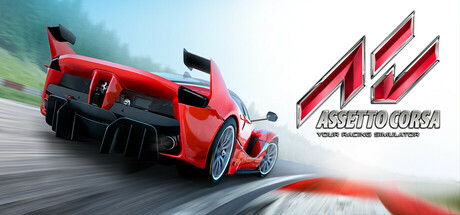
스트레스 없이 Assetto Corsa를 시작하는 방법: 어시스트 프로필, 컨트롤, 타이어, 게임 모드, 저사양과 고사양 PC 설정, 그리고 현명한 트레이너 사용법까지 알려드려요.
Getting Started the Right Way
Assetto Corsa is a 2014 driving simulator from Kunos Simulazioni, and its handling comes from a physics model rather than arcade rules. Tyre temperature and the state of the surface both affect grip, and the game does not quietly forgive mistakes. They cost you time. That is the main adjustment for a newcomer, because you are learning to drive a car, not learning a game's tricks. Your first laps will be slow and messy, and that is normal. It does not mean your controls are set up wrong.
Start with a solo session in a modest road car on a track you can learn quickly. Update 1.13 added the Mazda MX5 NA as free content. A light, low-powered car like that teaches weight transfer without punishing every small error. Pair it with a circuit you may know from television, such as Brands Hatch or Imola, and drive alone until you can put together clean laps without spinning. Add opponents or faster cars after that.
- Start in a low-powered road car, not a race car.
- Drive alone until you can do five clean laps in a row.
- Learn one track properly before moving to the next.
- Get consistent first; the speed comes after.
Assist Profiles and Controls
There are four assist profiles: gamer, racer, pro, and a fully customisable one. Gamer is the place to begin, especially on keyboard or gamepad, and the names give a fair idea of how the help tapers off from there. The custom profile is the one to grow into. Once you know what each aid does, you can turn them off one at a time. Jumping straight from heavy assistance to none usually means an evening spent in the gravel.
Your input device matters more here than in most racing games. Keyboard, gamepad, joystick and steering wheels are all supported, including professional wheels and common motion systems. Triple monitors, Track IR, 3D Vision and VR through Oculus and OpenVR are covered too. Steam lists controller support as partial, so a pad works but is less precise than a wheel. With a force feedback wheel you can usually feel the tyres start to lose grip, and for many new drivers that is when the handling clicks.
- Begin on the gamer profile and move to racer once your laps are consistent.
- Use the custom profile to remove one assist at a time.
- On a pad or keyboard, keep steering and throttle inputs gentle.
- Calibrate a wheel before your first proper session.
Tyres, Track and Car Setup
The tyre model is one of the deepest parts of the simulation. Lock a wheel under braking and you can leave a flat spot. Overwork the tyres and their heat cycles can lead to graining or blistering. So brake in a straight line, stop sawing at the wheel, and give the tyres a lap or two to warm up before you push. Smooth driving is quicker, and it also keeps the car behaving the same way for the whole session.
The track changes as you drive. Rubber builds up on the surface as laps are completed, so grip rises during a session, and some of your improvement may come from the track rather than from you. You can adjust the time of day, and the sun position is calculated in real time. Some cars add their own systems to manage, such as hybrid energy recovery with KERS and active aerodynamic parts that move while you drive. Expect a steeper learning curve in those.
The game has advanced setup options and telemetry for data analysis, but leave the setup at default until your driving is consistent. A setup change only tells you something if you can repeat the same lap. When you do start tuning, change one thing per run and check the telemetry so you know which adjustment helped.
- Brake in a straight line to avoid flat spots.
- Treat the first lap or two as tyre warm-up.
- Stick with default setups until your lap times vary by less than a second.
- Change one setup value per run and check the telemetry.
Career, Events and Race Weekends
Career mode gives you a set path to follow, which helps if a long menu of cars and tracks feels like too much choice. Special events and challenges work as focused tests, and they are a handy way to try cars you would never pick yourself. Drag races and drift challenges are also included. Both teach throttle control differently from circuit racing.
For your own racing there are quick races, custom championships and full race weekends with free practice, qualifying and the race. Update 1.14 reworked the AI to behave more realistically in offline races. Start with a small field when you first race the AI, so you have room to learn racecraft without constant contact, and add cars as your confidence grows. Practice and qualifying are worth running, because the track gains rubber the more laps are driven on it.
Online PvP is there when you are ready. Wait until you can lap consistently without spinning. Other drivers in sim racing expect predictable lines and clean overtakes. Steam Leaderboards let you compare times, which gives you a target once you are chasing tenths.
- Use career mode if you want a guided progression.
- Try special events to sample unfamiliar cars.
- Run full race weekends to practise as the track rubbers in.
- Go online only when you can lap cleanly and predictably.
PC Settings and Performance
The minimum specification is Windows 7 SP1 up to Windows 10, an AMD Athlon X2 at 2.8 GHz or Intel Core 2 Duo at 2.4 GHz, 2 GB of RAM, a DirectX 10.1 card such as a Radeon HD 6450 or GeForce GT 460, and 15 GB of storage. That gets the game running, though you should expect low settings. The recommended specification asks for a six-core AMD or quad-core Intel CPU, 6 GB of RAM, a Radeon 290X or GeForce GTX 970, and 30 GB of storage.
On a weaker PC, put a steady frame rate ahead of visual quality, because smooth frames make the car much easier to control. In most racing sims the heaviest options are shadows, reflections, anti-aliasing and the number of cars on track, so lower those first. A smaller AI field usually helps an older dual-core CPU, since every car needs physics and AI calculations. Drop the resolution last, as it makes braking points harder to spot.
A machine at or above the recommended level gives you more headroom for higher settings and bigger grids on a single screen. VR, triple monitors and 3D Vision are much more demanding, because the game has to draw a wider view or render the scene twice. If you plan to use any of them, treat the recommended spec as a starting point, and be ready to trim shadows and reflections even on a strong system.
- Put a stable frame rate ahead of visual detail.
- Lower shadows and reflections first on weaker hardware.
- Reduce the number of AI cars if your CPU struggles.
- Keep the resolution high enough to read braking markers.
- Leave spare performance for VR or triple screens.
Using the Trainer Sensibly
The trainer offers No Car Damage, Infinite Fuel, No Tire Wear, Freeze AI Cars, Super Speed, Super Grip, Instant Brake, Freeze Lap Timer, Game Speed, Save Position and Load Position. Use it only in single-player and offline sessions, and keep it closed during online PvP races. Any time set with it running, especially with Freeze Lap Timer or Super Grip active, is private practice and does not belong on Steam Leaderboards. Other drivers deserve a fair field.
The best options are the ones that speed up learning. Save Position and Load Position let you run one tricky corner dozens of times without lapping the whole circuit. Game Speed slows a fast sequence so you can study your inputs. No Tire Wear and Infinite Fuel allow long runs focused purely on your line, and No Car Damage removes the penalty while you look for the limit. Freeze AI Cars holds the field in place while you work on a section.
Super Speed, Super Grip and Instant Brake are fine for messing about, but they hide the physics you are trying to learn, so turn them off for serious practice. Back up your save and progress files before using the trainer, since a Steam update or an unusual game state can occasionally cause problems. Enable one option at a time so you can see what each one does.
- Single-player and offline only; never in online races.
- Back up your saves before the first use.
- Use Save Position and Load Position to drill one corner.
- Turn off Super Grip and Super Speed for real practice.
FAQ
Can I play Assetto Corsa with a gamepad or keyboard?
Yes. A keyboard or gamepad is the minimum requirement, though Steam lists controller support as partial, and a steering wheel gives more precise control and feedback.
Does Assetto Corsa support VR?
Yes, it supports Oculus and OpenVR headsets such as the VIVE. Native OpenVR support arrived as a beta in update 1.13, and VR needs considerably more performance than a single monitor.
Which assist profile should a beginner choose?
Start with the gamer profile, move to racer once your laps are consistent, and later use the custom profile to remove assists one at a time.
Is Laguna Seca in the game?
Yes. Laguna Seca came with Bonus Pack 3 in update 1.16 as free content, along with seven cars from Alfa Romeo, Lamborghini, Maserati and Pagani.
Can I use the trainer in multiplayer?
No. Use it only in single-player or offline sessions, and do not treat times set with it as genuine leaderboard results.
댓글
아직 댓글이 없어요
가장 먼저 의견을 남겨 보세요.